
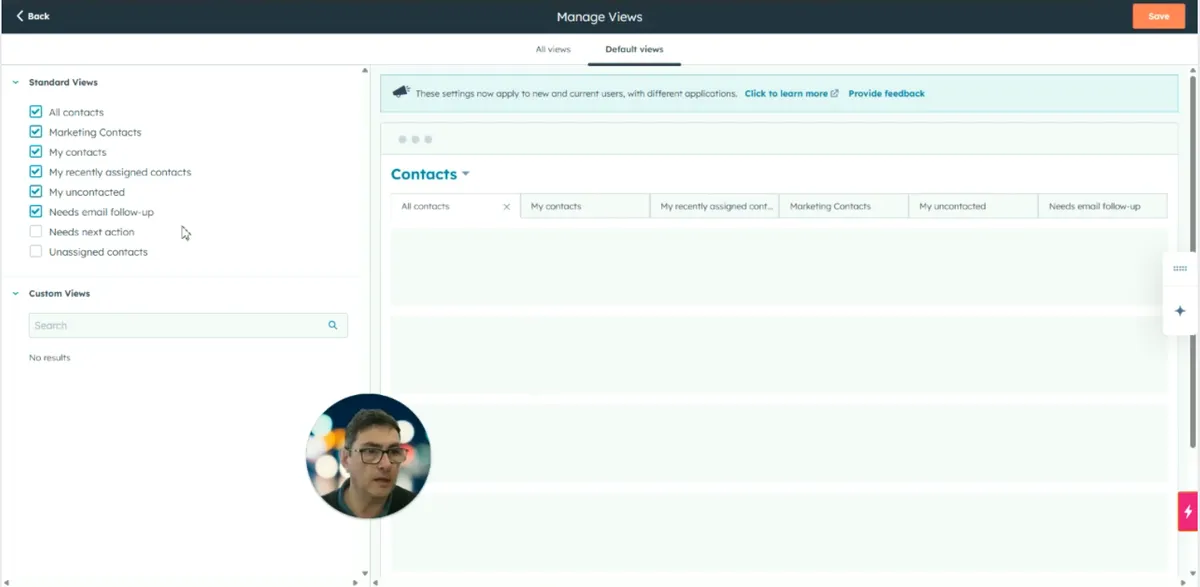
Want to customise the tabs your team sees on the Contacts screen in HubSpot? You can change the default tabs for everybody in a few minutes, as long as you have super user access. Go to Settings, open the Contact object, choose Index Customization and then All Views, tick the extra views you want, drag them into order and save. The same process works for companies, deals and other objects.
The tabs along the top of the Contacts screen are saved views. Some organisations prefer to add their own, so the most relevant contact lists are in front of everyone without each person setting them up. Menu names below are as HubSpot showed them when this guide was written and may have changed since.
What do you need before you change HubSpot contact tabs?
You need super user access. Changing the default tabs changes what everybody sees on the Contacts screen, so it sits in the account settings rather than on the Contacts page. Once you have those credentials, nothing else is needed: the views you can add are already listed in the settings.
| You want to… | Where to do it |
|---|---|
| Change the default tabs for everyone | Settings > Object > Contact > Index Customization > All Views |
| Change default tabs for companies, deals or other objects | The same Index Customization settings for that object |
| Check the result | The Contacts screen (or the relevant object’s index page) |
How do you customise the default contact tabs in HubSpot?
Open Settings, go to Object and select Contact, then click the Index Customization tab and choose All Views. Review the default tabs already active, select any extra views you want from the available list, drag them into the order you want and click Save. New views are added to the end of the tab row until you move them.
- Open the CRM and go to the Contacts section. The tabs are visible along the top of the screen.
- Click the Settings button at the top of the interface. You must have super user access to continue.
- In the settings menu, go to Object and select Contact.
- Click the Index Customization tab.
- Select All Views to see every available view.
- Review the default tabs that are currently active.
- Select any additional views you want from the available list. They are added to the end of the tab row.
- Drag and drop the tabs into the order that suits your organisation.
- Click Save to apply the changes.
- Return to the Contacts screen and check that the new and reordered tabs are showing at the top of the page.
Can you change the default tabs for companies and deals?
Yes. The same Index Customization settings are available for companies, deals and the other indexed areas of your CRM. If your team would benefit from different default tabs on those screens too, repeat the steps for each object type, choosing that object instead of Contact in step 3.
- In Settings, go to Object and select the object you want, such as Companies or Deals.
- Open Index Customization and select All Views.
- Add, reorder and save the views as you did for contacts.
- Check the object’s index page to confirm the new tabs are showing.
Getting more from HubSpot’s views and settings
Default tabs are a small change, but they decide what your team sees first every time they open the CRM. Changes like this work best as part of a wider look at how your team uses HubSpot, which is covered in how to make HubSpot work harder for you and in how to drive CRM user adoption that lasts.
If you would rather have someone handle settings changes like this for you, Cogent’s HubSpot support team can help.
Questions people also ask
Who can change the default contact tabs in HubSpot?
You need super user access to change the default tabs, because the change applies to everybody who uses the Contacts screen. Once you have those credentials, the change is straightforward: it is made in the contact object settings under Index Customization, not on the Contacts screen itself.
Where do newly added tabs appear?
When you select extra views in Index Customization, they are added to the end of the tab row. You can then drag and drop them into whatever order suits your organisation before you click Save. Go back to the Contacts screen afterwards to check the new tabs are showing along the top.
Can I set default tabs for companies and deals too?
Yes. The same Index Customization settings exist for companies, deals and the other indexed areas of the CRM. Repeat the process for each object type: choose All Views, add the views you want, put them in order and save.