
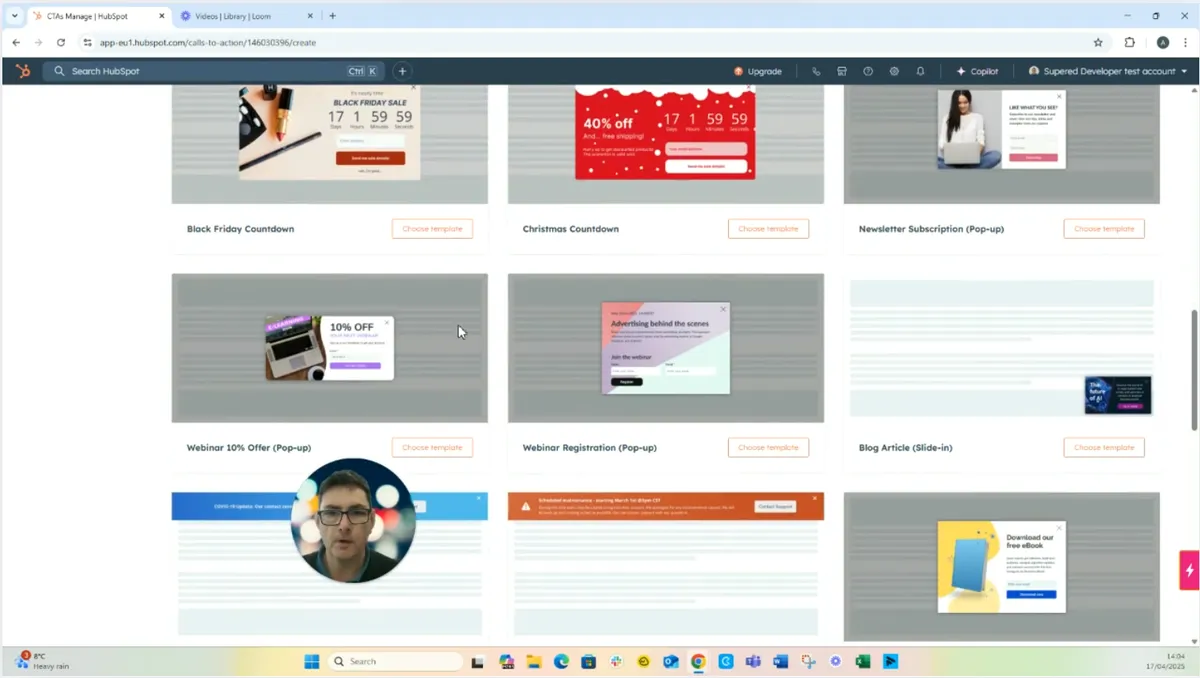
Why won’t your new HubSpot form show up in a call to action (CTA)? HubSpot forms now come in two versions: forms built in the current form editor and legacy forms. Many CTA templates still refer to legacy forms, so a form you have just built in the current editor may not appear in the template’s form dropdown. There are two fixes: create the form from inside the CTA, or delete the template’s form module and add a New Form Editor module that lists your form.
This guide walks through both, starting with building a simple form. Menu and button names are as HubSpot showed them when this guide was written and may have changed since.
Why don’t new HubSpot forms appear in CTA templates?
CTA templates that include a form were built around HubSpot’s legacy forms. When you select the form in one of those templates, the dropdown may not list forms you have created in the current form editor. The form exists; the template’s form module just doesn’t look for it. Swapping the module, or creating the form from within the CTA, solves the problem.
| Option | When to use it | What happens |
|---|---|---|
| Create New Form inside the CTA | The form only needs to exist for this CTA | HubSpot creates the form, inserts it and links it automatically |
| Add a New Form Editor module | You have already built the form you want to use | Your current-editor form appears in the module’s dropdown and you insert it |
How do you create a form in HubSpot’s current form editor?
Go to Marketing, then Forms, and choose the current form editor rather than the legacy version. Start from blank, remove the fields you don’t need, keep the essential ones such as email address, name the form and exit the editor. The form is then ready to use in a CTA.
- Navigate to the Marketing tab in HubSpot.
- Click Forms.
- When you create a form, choose the current form editor, not the legacy form editor.
- Select Start from Blank to create a basic form.
- Remove the fields you don’t need and keep the essential ones (for example Email address).
- Name the form and exit the editor.
How do you add a form to a HubSpot CTA?
Go to Marketing, then Calls to Action, create a new CTA and pick a template that includes a form. If your form isn’t in the template’s dropdown, either click Create New Form to build one in place, or delete the default form module and add a New Form Editor module, where your existing form will be listed.
Start the CTA
- Go back to the Marketing menu.
- Click Calls to Action.
- Choose to create a new CTA.
- Select a CTA template that includes a form module.
- Try selecting your form from the dropdown. Forms created in the current editor may not appear in this list.
Option 1: create a form directly in the CTA
- In the CTA editor, click the Create New Form button.
- Name your new form.
- The form is inserted into the CTA and linked automatically.
Option 2: link a form you have already created
- Delete the default form module in the CTA.
- Click Add Module.
- Select New Form Editor (rather than the legacy forms module).
- Choose your previously created form from the dropdown. It appears here.
- Click to insert it.
How do you finish and publish the CTA?
Before you publish, review the CTA settings and check that the correct form is linked and working, particularly if you have swapped out a template’s legacy form for one built in the current editor. Once you are happy that the right form is in place, save and publish the CTA.
- Review the CTA settings.
- Make sure the correct form is linked and functioning.
- Save and publish the CTA when ready.
Forms and CTAs are the front door for new contacts, so it pays to keep them tidy. For more on getting value from HubSpot’s tools, see the HubSpot features that actually help you scale and our practical guide to how to use HubSpot. If your team needs help with HubSpot’s tools as they change, our article on HubSpot training and support covers the common challenges, and Cogent’s HubSpot support service can take requests like this off your plate.
Questions people also ask
What is the quickest way to put a new form into a HubSpot CTA?
Use the Create New Form button inside the CTA editor. You give the form a name and HubSpot inserts it into the CTA and links it automatically, so you don't have to go and find a form in the dropdown. It's the fastest route when the form only needs to live in that CTA.
Should I use the legacy form editor or the current one?
When you create a form, HubSpot offers both the form editor and the legacy form editor. This guide uses the current form editor throughout. The catch is that many CTA templates still refer to legacy forms, so you need one of the two methods here to get a current-editor form into a CTA.
How do I swap the form in an existing CTA template?
Open the CTA in the editor and delete the default form module. Click Add Module, select New Form Editor, then choose your form from the dropdown, where forms built in the current editor do appear. Insert it, check the right form is linked and working, then save and publish the CTA.