
What is HubSpot lead scoring, and how do you set it up well? Lead scoring gives contacts and companies points based on how they engage with you (an engagement score) and how well they match the customers you serve (a fit score). In HubSpot you build it under Marketing > Lead Scoring. Start by deciding what the score is for, choose manual or AI scoring, build scoring groups with decay, then use the score property to drive workflows.
Done well, lead scoring helps you spot new leads and returning customers showing interest, so your sales team can get ahead of the competition by engaging early. This guide is written from a HubSpot Marketing Professional setup. Menu names are as HubSpot showed them when it was written and may have changed since.
What should lead scoring achieve?
Decide what you want lead scoring to achieve before you build anything. Forms that are submitted already get dealt with urgently, so engagement scoring earns its keep elsewhere: re-engaging previous contacts, spotting people on your database who are showing more interest, and prioritising leads when volumes are high. Then decide whether to score engagement, fit, or both.
Common objectives:
- Re-engaging dormant contacts. Identify people on your database who are showing renewed interest in your business.
- Prioritising incoming leads. If high volumes of leads come through, a score helps you work out which to deal with first.
- Aligning with lifecycle stages. Use the score to support stages such as marketing qualified lead (MQL) and sales qualified lead (SQL).
- Separating engaged from unengaged deals. Identify, at the deal stage, who is responding regularly and who isn’t, so you can prioritise the engaged and take more direct action to re-engage the rest.
| Score type | What it measures | Object |
|---|---|---|
| Engagement score | How contacts engage with you at different stages of the funnel | Contacts, or companies (scoring all associated contacts) |
| Fit score | How well a company fits the services you provide | Usually companies |
Manual or AI lead scoring: which should you use?
Most Professional users will use manual scoring. AI-based scoring needs a lot of historical data, because HubSpot looks at what has happened in the past to see which engagements moved people from one stage to another. AI scoring is available in Enterprise. If you don’t have that data, or don’t use deals and leads consistently, start with a manual score.
| Manual scoring | AI-based scoring | |
|---|---|---|
| Who it suits | Most Professional users | Accounts with substantial historical data |
| How it works | You set the rules and the points | HubSpot analyses your existing data to find conversion patterns |
| What you set | Groups, events, points, decay, time frames | A stage progression (for example lead to SQL) and a time frame |
| Data needed | None to start | Plenty of records that have moved between the chosen stages |
To set up AI scoring:
- Go to Marketing > Lead Scoring and create a score using the AI option.
- Give it a name.
- Define the stage progression you want to predict, for example from lead to sales qualified lead.
- Set the time frame for evaluation.
- Create the score. HubSpot reviews all the records that have moved between those stages.
If you want AI to help prioritise at the deal stage, you need to use deals and leads fastidiously, so HubSpot can see every engagement that happens at those stages.
How do you build an engagement score in HubSpot?
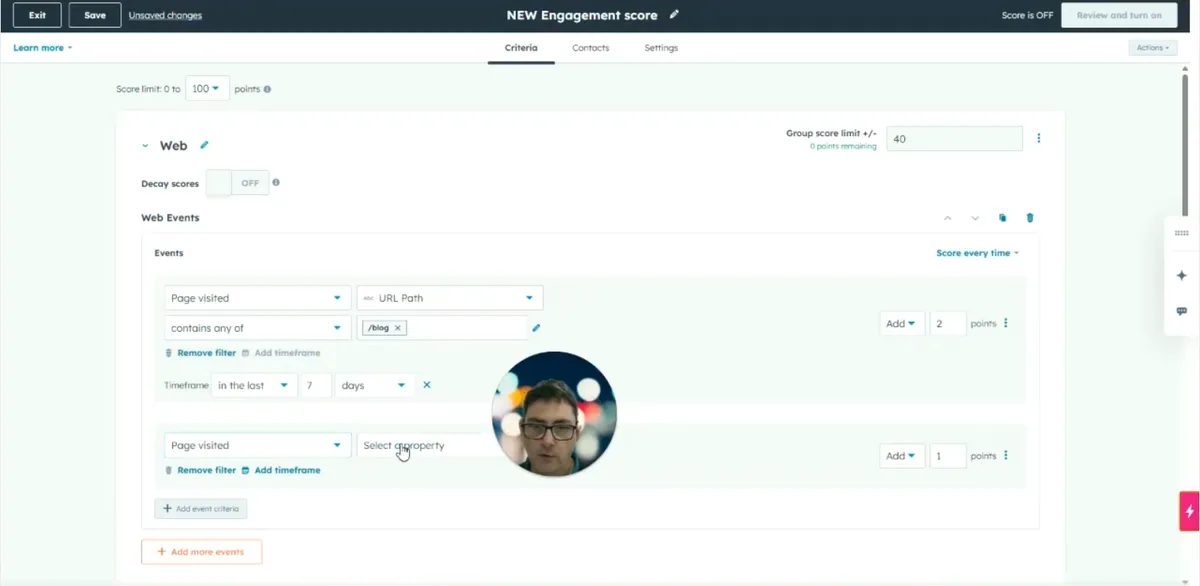
Create a new score, name it and choose the object (usually contacts). Add event groups, such as a web scoring group and a form scoring group, and split your points between them. In Marketing Professional the standard is 100 points. Then add rules inside each group that award points for specific page visits, form interactions and other activity.
Set up the score
- Go to the Marketing tab and select Lead Scoring.
- Create a new lead score and give it a name (for example “New Engagement Score”).
- Choose the object type: typically Contacts. You can also score Companies, which scores the engagement of all the company’s associated contacts.
- Add event groups to separate your scoring logic, for example a “Web Scoring Group” and a “Form Scoring Group”.
- Use the standard 100-point scale and distribute the points between groups by importance, for example 40 points for web engagement and 60 for form submissions.
Score page visits
- In the web group, add a Pages visited rule and filter by URL path.
- Give lower-value pages fewer points, for example 2 points for any URL containing your blog path.
- Give high-intent pages more, for example 10 points for visits to /pricing.
- Add a time frame to reward recency, for example 30 points for a pricing page visit in the last 3 days.
Not every page is as valuable as the next. People who visit a contact us page or look at pricing, especially more than once, matter more than someone who found a blog article.
Score form interactions
- Add form criteria to the form group. You can choose whether someone viewed a pop-up, interacted with a form without submitting, or submitted a form.
- Filter by form name, content name or content type to be as specific as you want.
- Weight scores by content type, for example 10 points for downloading a brochure.
Add other criteria
You can also score engagement with:
- Marketing emails
- Sales emails
- Calls and tasks
- Sequence activity
Tailor scores to different audiences
You don’t have to apply a score to every contact in your database. If you work with builders and architects, for example, they take very different routes because they play different roles in the process. Build a separate engagement score for each and apply it to a static or dynamic list of that audience.
How do you stop lead scores going stale?
Use decay or time frames so old activity stops inflating a score, and use negative scoring to take points away. If someone looks at several pages and then does nothing for months, you don’t want them to keep showing as a high-scoring contact. HubSpot offers two ways to handle this, and you can subtract points for signs of disinterest.
| Method | How it works | Example |
|---|---|---|
| Decay scores | Reduce points by a percentage over a set number of months | Decay web points by 100% over 1 month |
| Time frames | Only count actions within a recent window | Count page visits in the last 7 days |
| Negative scoring | Subtract points for actions that show less interest | Unsubscribing, low-value page visits, being identified as a competitor |
| Workflow reset | A workflow sets the score to zero | A contact is identified as a competitor or disqualified |
Negative scoring matters because some visitors are not buyers at all. They may be a competitor, or there to sell to you rather than buy from you.
How do you build a company fit score?
Create a new score with Companies as the object and add rules based on company properties such as industry, location, number of employees and technology stack. Fit scores have no decay feature, because firmographic data doesn’t change much: if a company fits now, it will probably still fit later. Much of the data can be added by HubSpot itself.
- Create a new score and choose Companies as the object instead of Contacts.
- Add criteria from the list of company properties, for example industry, location, number of employees or technology stack.
- Set the points for each rule, for example 10 points where the number of employees is greater than 20.
- Use list membership to apply rules to very specific types of organisation.
- To score different role types, add a scoring group for each (for example one for architects and one for builders) inside the same fit score.
- Save the score.
Some company data may be appended automatically by HubSpot, particularly if HubSpot creates companies from contacts’ email domains as they come in.
In Professional accounts you have access to five lead scores in total, across engagement and fit. A fit score with several scoring groups inside it still counts as one of the five.
How do you put lead scores to work?
Every lead score creates a HubSpot property. That property can trigger workflows to update lifecycle stages, assign leads, set tasks, enrol contacts in sequences and send notifications. Add colour-coded thresholds so salespeople can see at a glance which contacts are hot or cold, including those likely to become leads soon.
- Open the score’s Settings to review the property label and score values.
- Set thresholds and colour coding so scores are easy to read on contact records.
- Build workflows that use the score property, for example to move contacts between lifecycle stages, allocate leads, set tasks or push contacts into sequences.
- Save the score.
Used this way, lead scores help you segment contacts, trigger workflows, assign lifecycle stages and bring marketing and sales closer together.
Lead scoring only works if the data and processes behind it are sound. For the wider picture, read about CRM process optimisation and the HubSpot features that actually help you scale. If you need a hand setting up scores and the workflows that use them, Cogent’s HubSpot support team can help.
Questions people also ask
How many lead scores can you have in HubSpot Marketing Professional?
Professional accounts give you access to five lead scores, which you can split between engagement and fit scores. A score with several scoring groups inside it, such as separate architect and builder sections in one fit score, still counts as one of the five.
Do HubSpot fit scores decay over time?
No. The decay feature is not available on fit scores because they are built on firmographic data such as industry, location and number of employees. If an organisation fits your business now, it may well fit just as well in the future, so it tends to keep its score.
Should form submissions count towards a lead score?
Often a form submission generates a lead on its own and gets dealt with straight away, so form interactions can be more useful to score. The exception is gated hero content, such as a how-to guide or brochure, which might add around 10 points and, together with other activity, tip a contact into an MQL.
How do I reset the score for a competitor or disqualified contact?
Use a workflow. Because every lead score is a HubSpot property, a workflow can set the score to zero when a contact is identified as a competitor or otherwise disqualified. You can also build negative scoring rules that subtract points for actions such as unsubscribing.