
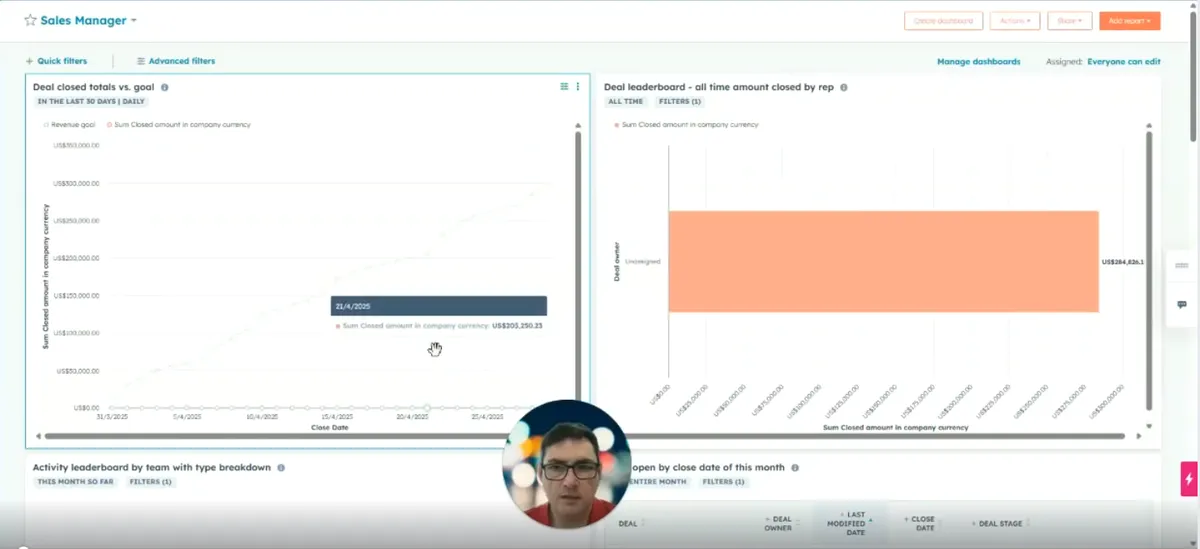
How do you build HubSpot dashboards that are actually useful? Start from one of HubSpot’s dashboard templates, clear out the reports that show nothing, then add HubSpot’s own prebuilt reports from the Reports area, filtered to the pipelines and teams you care about. Standard reports cover most of what a sales team needs, so you rarely have to start with custom reporting. This guide walks through each step, then shows how to put together a sales velocity dashboard.
Menu and button names below are as HubSpot showed them when this guide was written. HubSpot updates its screens often, so the labels in your account may differ slightly.
How do you create a dashboard in HubSpot?
Go to the Dashboards section, create a new dashboard and pick a template such as Sales, Marketing or Service. Each template comes with roughly half a dozen to a dozen reports already built in, which is a good starting point. Choose who can see the dashboard, create it, then remove any reports that don’t apply to you.
- Navigate to the Dashboards section in HubSpot.
- Click to create a new dashboard.
- Choose from the predefined dashboard templates (for example Sales, Marketing or Service) and review the default reports included with each.
- Select your dashboard type (for example Sales Dashboard) and select all of its default reports.
- Set the visibility: everyone, or specific teams or users. You can also choose whether people can view only or view and edit.
- Click Create Dashboard.
- Open the new dashboard and review the reports it contains.
- Delete any irrelevant or empty reports by clicking the delete icon on each one.
If you are working in a sandbox, some reports will show no data because it is dummy data. In a live account, empty or patchy reports usually mean your data isn’t being collected the way the report expects.
That is why, at Cogent, we try to align closely with the way HubSpot collects data. It means clients can get the most out of standard reporting, which makes dashboards much easier to build and keeps them working when HubSpot upgrades its reports.
How do you arrange and edit reports on a dashboard?
Every report on a dashboard can be resized, moved and edited in place. Drag the bottom-right corner to resize, drag and drop to reposition, and click a report to open the editor, where you can change the date range, the time aggregation and the filters. When you close the editor, you can choose to update the existing report so the change sticks.
Layout
- Resize a report by dragging from its bottom-right corner.
- Reposition reports by dragging and dropping them to make better use of the screen.
Editing a single report
- Click a report to open the editor.
- Change the date range, for example from “Last 30 Days” (a rolling range) to “This Year”.
- Switch the time aggregation, for example from daily to monthly.
- Apply a Quick Filter, or add an Advanced Filter if the property you want isn’t listed (for example Deal Stage “is any of” the stages you want to report on).
- Close the editor and choose to update the existing report if you want to keep the change.
Changing how a report looks
- In the editor, choose Customize to change the visualisation, for example from a line graph to a column graph.
- Configure options such as totals, data breakdown frequency (monthly or quarterly) and chart display.
- Save and update the report.
Once you start changing the properties a report uses, you are moving into custom reporting. Before you do, check HubSpot’s prebuilt reports, because there is a lot of strong reporting there already.
Where do you find HubSpot’s prebuilt reports?
Go to Reports, select Create Report and look through the Analytics Tools suites. Each suite has its own list of reports built by HubSpot, including deal reporting, sales velocity, forecast and revenue reports, and historical snapshots. Open a report, read its About tab, customise it, then save it straight to your dashboard.
- Go to the Reports area in HubSpot and select Create Report.
- Explore the Analytics Tools and the Prebuilt Reports by HubSpot.
- Choose a report from areas such as Deal Reporting, Sales Velocity, Forecasts and Historical Snapshots.
- Open a report (for example Average Deal Size) and review the About tab. It explains where the data is pulled from and how the report is put together, so you can see what data you need to bring in to populate it.
- Customise the time range (preset, custom or rolling), the frequency and the filters. Advanced filters support AND/OR conditions.
- Choose between totals and over time (for example a monthly breakdown), and pick a chart type that fits the data.
- Click Save, choose Add to Existing Dashboard, select your dashboard and click Save.
- Return to the dashboard to confirm the report has been added at the bottom, then resize or reposition it.
Which reports belong on a sales velocity dashboard?
A sales velocity dashboard built from standard HubSpot reports shows how quickly deals move and where they stall. The reports worth reviewing are Average Deal Size, Deal Velocity, Sales Velocity, Deals Won and Lost, Time Spent in Deal Stage, Push Rate and Historical Snapshots. Filter them by pipeline to compare the performance of different sectors.
| Report | What it shows |
|---|---|
| Average Deal Size | Deal size across the period, by individual or over time |
| Deal Velocity | How quickly deals move, filterable by pipeline |
| Sales Velocity | Velocity across your sales process |
| Deals Won and Lost | Wins and losses, with similar filtering options |
| Time Spent in Deal Stage | Where deals spend their time (a more complex report) |
| Push Rate | The proportion of deals whose close date has been pushed out |
| Historical Snapshots | How deals have changed month by month |
To build it:
- Go to Reports and look at the Deals reports and the Forecast & Revenue reports.
- Open a report such as Average Deal Size and read the About tab.
- Adjust the date range, for example to “This Year”, or use a custom or rolling range.
- Use the Quick Filter at the top of the report (for example Pipeline) to segment the data by pipeline. Click “Clear All” to remove quick filters.
- Switch between totals and over time, and change the chart type (horizontal bar, column or line) to one that fits the data.
- Check the Data Table at the bottom of the report for the detailed figures. Where the report supports it, edit the columns for a better breakdown, or pull out the unsummarised data.
- Click Save Report, select Add to Existing Dashboard, choose your dashboard (in the original walkthrough, “Sales and Deal Velocity and Analytics”) and click Save & Add.
- Repeat for the other reports in the table above.
If a report has no pipeline quick filter, check under More for extra filter options. If it still isn’t there, click Edit Filters, add an Advanced Filter for Pipeline (using AND/OR logic if needed), then apply and save.
How do you filter a whole dashboard at once?
Use the Quick Filters at the top of the dashboard. They apply to every report on it at the same time, so you can view the whole dashboard for one pipeline or team, compare, then switch the filter off again. To change a single report, click it and choose Customise instead.
- Use the Quick Filters at the top of the dashboard to filter all reports at once, for example by a specific pipeline or team.
- Toggle the filter off to return to the full view.
- To adjust one report, click it and choose Customize. Change the time frame (for example monthly to quarterly), the chart type, the properties and the fields shown.
- Save and update the report.
- Do a final walkthrough of the dashboard and check that each report meets your needs.
Treat the dashboard as something you keep refining. If the standard reports give you ideas for information they don’t show, that is where custom reporting comes in.
When should you get help with HubSpot reporting?
Get help when the filters on a standard report won’t give you the cut of data you need, or when you need custom reports built around your own processes. A partner can set up the filters, build custom reports and check that your data is being captured in a way the reports can use.
If the reports you want stay empty, the problem is usually how data goes into HubSpot rather than the report itself. Our guide to making HubSpot work harder for you covers that side, and the HubSpot features that actually help you scale explains which tools are worth the effort. For a wider introduction, see how to use HubSpot.
Cogent’s HubSpot support team can help set up dashboard filters and build custom reports when the standard ones run out.
Questions people also ask
Why do some reports on my new HubSpot dashboard show no data?
Template reports only fill in if your HubSpot data is collected the way the report expects. If you are working in a sandbox, or your team records information differently, some reports will be empty or only partly populated. Open the report's About tab to see where it pulls its data from, then delete the report or change how that data is captured.
Can I filter every report on a HubSpot dashboard at once?
Yes. The Quick Filters at the top of the dashboard apply to all of its reports together, for example to show a single pipeline or team. Turn the filter on to compare, then switch it off again to go back to the full view. To filter a single report instead, open it in the editor and use its own filters.
Which prebuilt HubSpot reports are most useful for a sales dashboard?
For sales velocity, the reports worth reviewing are Average Deal Size, Deal Velocity, Sales Velocity, Deals Won and Lost, Time Spent in Deal Stage, Push Rate and Historical Snapshots. Push Rate shows the proportion of deals whose close date has been pushed out, and Historical Snapshots shows how deals have changed month by month.
When do I need custom reporting instead of standard reports?
Once you start changing chart types and the properties a report uses, you are moving into custom reporting. If the standard reports and their filters do not show the information you need, that is the point to build custom reports, or to ask your CRM team or partner to set up the filters and reports for you.